Credit
Card Authorization Entries
After an order is entered, and then checked for correctness, it
is ready for credit card authorization. The process authorizes each invoice
individually and obtains its approved status or its denied reason. Processing
of the credit card authorizations uses the Linkpoint Api module and is configured
for payment processing with CardService International. A merchant account and
the Linkpoint Api from CardService is required to process the credit card authorizations.
Credit Card Authorization Browse Screen

Credit Card Authorization Entry Screen
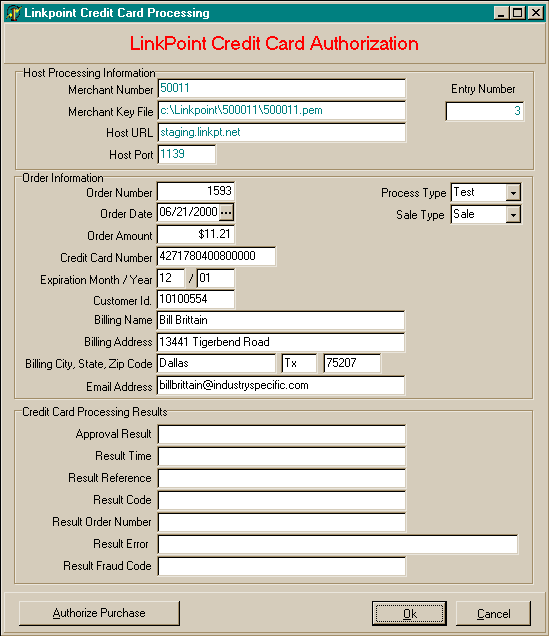
Credit Card Authorization Data
- Merchant Account Information
- Merchant Number: Name of the pem file used for your merchant
account by the Linkpoint API.
- Merchant Key File: Directory with the pem file name and extension
used by the Linkpoint API.
- Host URL: The internet address for the processing site to be
used.
- Host Port: Usually will be 1139.
- Order Information
- Result Type: The normal processing type to be used: Test for
testing and Live for actual processing.
- Charge Type: The normal charge type of your transactions. Primarily
will be Sale
- Order Number: A unique order number for each customer order..
- Order Date: The customer order entry date. This date is system
assigned.
- Order Amount: Dollar amount for the credit card transaction.
- Credit Card Number: The customer credit card number.
- Credit Card Expiration Month/Year: The expiration month and Year
of the customer credit card. Date is entered MM/YY.
- Customer Id: Customer number assigned by your company to identify
the customer.
- Billing Name: Name of customer as used on credit card.
- Billing Address: Customer billing address for credit card.
- Billing City: Customer billing city for credit card.
- Billing State : Customer billing state for credit card.
- Billing Zip Code: Customer billing zip code for credit card.
- E-mail address: Customer email address for sending confirmation
of transaction.
- Processing Results:
- Approval Result: Result of transaction: Either Approved, Denied,
or Fraud.
- Result Time: Time transaction was processed.
- Result Reference: Customer reference number as passed to processor
in the transaction.
- Result Code: Code of result.
- Result Order Number: Transaction identification reference number
supplied by processor.
- Result Error: Detailed error message if transaction was denied.
- Result Fraud Code: Fraud code if transaction was denied as fraud.
To enter
a new Credit Card Authorization:
- From the Document Entry menu, choose Credit Card Authorizations.
- In the Credit Card Authorization Browse window, choose the New button at
the bottom right.
- You do not enter a unique entry number. It is automatically assigned.
- Fill in the remainder of the Credit Card Authorization screen with the
information appropriate for this customer order.
- When the customer information is correct, choose the Authorize Purchase
button at the botton left.
- If the credit card authorization was approved, the Approval Result will
be Approved.
- If the transaction was denied for any reason, the Error reason will be recorded
and shown on the screen.
- When you have completed your entries, choose the Ok button to save the
information.
- Choose the Cancel button if you wish to cancel the Credit Card Authorization
entry.
To
edit a Credit Card Authorization:
- From the Document Entry menu, choose Credit Card Authorizations.
- In the Credit Card Authorization Browse window, choose the Edit button at the bottom
right.
- Edit the Credit Card Authorization information as needed
- When you have completed your entries, choose the Ok button to save the
information.
- Choose the Cancel button if you wish to cancel any changes to the Credit Card Authorization record.
To
delete a Credit Card Authorization:
- From the Document Entry menu, choose Credit Card Authorizations.
- In the Credit Card Authorization Browse window, choose the Delete button at the
bottom right.
- Choose the Yes button to delete the Credit Card Authorization record.
- Choose the No button if you do not wish to delete the Credit Card Authorization
record.
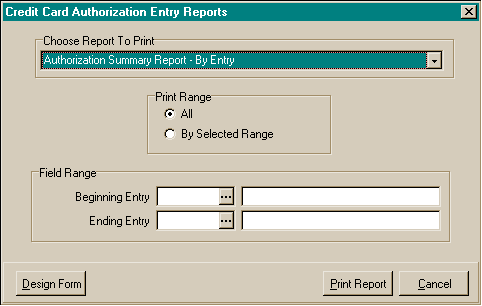
To
preview / print the Credit Card Authorization edit reports:
- From the Document Entry menu, choose Credit Card Authorizations.
- In the Credit Card Authorization Browse window, choose the Credit Card
Authorization Reports menu option at the upper left.
- Choose which report you wish to print. The options are:
- Summary Report - By Entry
- Choose the print range of Credit Card Authorizations. The options are:
- All
- By selected range. If by selected range, you may choose the beginning
and ending for the report, including the beginning and ending dates.
- Choose the Print Report button.
- The print preview window will appear. Use the page view buttons to size
the previewed report, and the page navigator buttons to scroll forward and
backward thru the report pages.
- To send to the printer, click on the Printer Speed Button at the top left
of the print preview screen.
- The printer dialog box will appear. Make any changes necessary. You may
change the number of copies, page range, and the designated printer.
- Choose the Ok button to send the report to the printer.
- Choose the Close button to end the print preview.