Flat Rate Catalogs
The Flat Rate Catalog
Browse Screen

The
Flat Rate Catalog Entry Screen
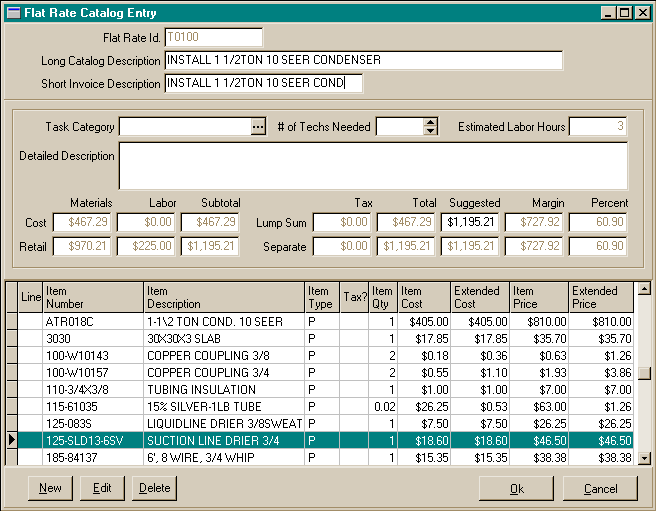
The
Flat Rate Catalog Item Entry Screen
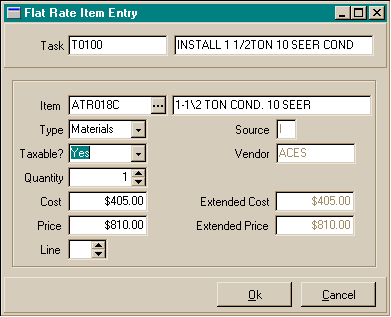
The
Flat Rate Catalog Reports Screen
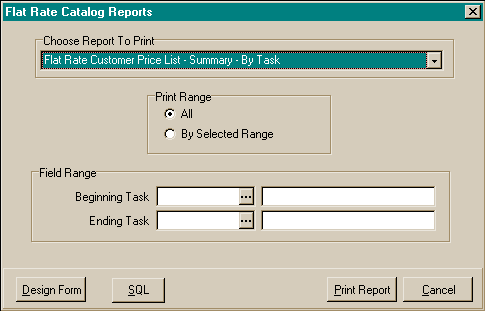
Flat
Rate Catalog - Copy a Flat Rate
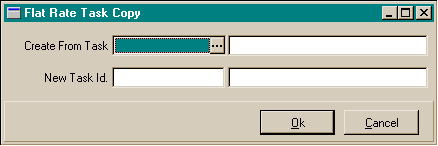
Flat
Rate Catalog Data - Main Entry Screen
- Flat Rate Catalog Id: Each Flat Rate
Catalog has a unique Flat Rate Catalog number up to 15 characters in length,
alpha/numeric.
- Long Catalog Description: The Flat Rate
Catalog description that will appear on the Flat Rate Catalog reports
- Short Invoice Description: The Flat Rate Catalog description
that will appear on invoice printouts.
- Task Category: A category assignment
for the task used to organize the catalog printouts.
- # of Technicians Needed: How many technicians
are normally assigned to complete this task.
- Estimated Labor Hours: Based on the
Labor items entered, this will show the total labor hours required to complete
this task.
- Detailed Description: A memo area that
allows a very detailed description of the work this task is to perform.
- Pricing Totals: Totals are maintained
for the costs, pricing, and margins based on the entered labor and material
items.
Flat
Rate Catalog Data - Item Entry Screen
- Item: Inventory item number from the
company inventory listing or a vendor price list.
- Type: The item type, either Labor or
Materials.
- Taxable: Is this item taxable, Yes or No.
- Quantity: Number of items to use on
this task.
- Cost: The unit cost of the item.
- Extended Cost: The quantity times the
cost of the item.
- Price: The sales price of the item.
- Extended Price: The quantity times the
price of the item.
- Line: Assign line numbers to reorganize
the appearance of the items in the order you wish. The default is 0.
To
enter a new Flat Rate Catalog:
- From the Lists menu, choose Flat Rate Catalogs.
- In the Flat Rate Catalog Browse window, choose
the New button at the bottom right.
- Enter a unique Flat Rate Catalog Id for this
new Flat Rate Catalog. The Flat Rate Catalog number may be up to 15 characters
in length either alpha or numeric. Use whatever is easiest for your company
to assign and remember. If the number has been already used by the system,
a caution window will appear explaining that another number should be chosen.
- Fill in the remainder of the Flat Rate Catalog
screen with the information your company needs to keep on file. For explanations
about the Flat Rate Catalog screen refer to the Flat Rate Catalog data section.
- Add all Labor and Material items needed for this Flat Rate
Catalog. Items may be pulled from the Company Inventory listing or the Vendor
Price Lists. For explanations about the Flat Rate Catalog screen refer to
the Flat Rate Catalog data section.
- When you have completed your entries, choose
the Ok button to save the information.
- Choose the Cancel button if you wish to cancel
the Flat Rate Catalog entry.
To
edit a Flat Rate Catalog:
- From the Lists menu, choose Flat Rate Catalogs.
- In the Flat Rate Catalog Browse window, choose the Edit
button at the bottom right.
- Edit the Flat Rate Catalog information as needed.
- When you have completed your entries, choose
the Ok button to save the information.
- Choose the Cancel button if you wish to cancel
any changes to the Flat Rate Catalog record.
To
delete a Flat Rate Catalog:
- From the Lists menu, choose Flat Rate Catalogs.
- In the Flat Rate Catalog Browse window, choose the Delete
button at the bottom right.
- Choose the Yes button to delete the Flat Rate Catalog
record.
- Choose the No button if you do not wish to
delete the Flat Rate Catalog record.
To
preview / print a Flat Rate Catalog reports:
- From the Lists menu, choose Flat Rate Catalogs.
- In the Flat Rate Catalog Browse window, choose the Flat Rate Catalog Reports menu option at the upper left.
- In the Flat Rate Catalog Reports window, choose the Flat Rate
Report to print. The options are:
- Customer Price List - Summary - By Task Number
- Customer Price List - Summary - By Category
- Customer Price List - Detailed - By Task Number
- Customer Price List - Detailed - By Category
- Office Price List - Summary - By Task Number
- Office Price List - Summary - By Category
- Office Price List - Detailed - By Task Number
- Office Price List - Detailed - By Category
- Choose the print range of Flat Rate Catalogs. The options are
a) all Flat Rate Catalog, or b) by selected range. If by selected range, you
may choose the beginning and ending Flat Rate Catalog for the report.
- Choose the Print Report button.
- The print preview window will appear.
- Choose the page view buttons to size the previewed report,
and the page navigator buttons to scroll forward and backward the report pages.
- Choose the printer speed button to print the report. The
printer dialog box will appear. Make any changes necessary. You may change
the number of copies, page range, and the designated printer.
- Choose the Ok button to send the report to the printer.
- Choose the Close button to end the print preview.