Letter Templates
The
Letter Template Screens
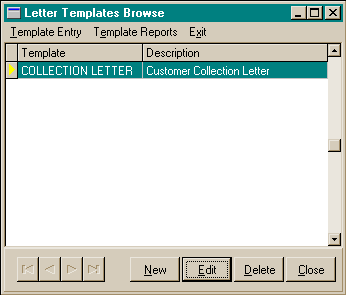
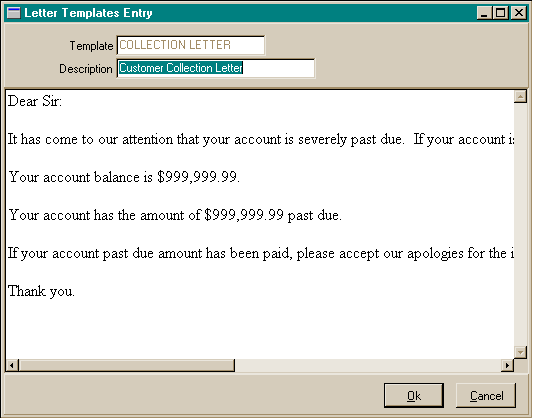
Letter Template
Data
- Letter
Template: The Letter Template code may be up to 20 characters in length.
- Letter
Template Description: The description or full name of the Letter Template.
- Letter:
The letter text to be used as a template in customer or vendor letters.
To
enter a new Letter Template:
- From the Lists menu, choose Letter Templates.
- In the Letter Template Browse window, choose
the New button at the bottom right.
- Enter a unique Letter Template Id for this
new Letter Template. The Letter Template description for the code may be up to 20 characters
in length either alpha or numeric. If the Letter Template code has been already used
by the system, a caution window will appear.
- Fill in the remainder of the Letter Template
screen with the Letter Template information appropriate for this Letter Template.
- When you have completed your entries,
choose the Ok button to save the information.
- Choose the Cancel button if you wish
to cancel the Letter Template entry
To
edit a Letter Template:
- From the Lists menu, choose Letter Templates.
- In the Letter Template Browse window, choose
the Edit button at the bottom right.
- Edit the Letter Template information as needed
- When you have completed your entries,
choose the Ok button to save the information.
- Choose the Cancel button if you wish
to cancel any changes to the Letter Template record.
To
delete a Letter Template:
- From the Lists menu, choose Letter Templates.
- In the Letter Template Browse window, choose
the Delete button at the bottom right.
- Choose the Yes button to delete the
Letter Template record.
- Choose the No button if you do not
wish to delete the Letter Template record.
To
print a Letter Template report:
- From the Lists menu, choose Letter Templates.
- In the Letter Template Browse window, choose
the Letter Template Reports menu option at the upper left.
- The print preview window will appear.
Use the printer speed button to print the report, the page view buttons to
size the previewed report, and the page navigator buttons to scroll forward
and backward thru the report pages.
- Choose the Close button to end the
print preview.