Customer
Invoices
The customer invoice area allows you to enter invoices for your
customers. A customer invoice is entered, changed as needed, and then posted
when it is completed.
In the customer invoice area, the posting of invoices allows for
the automatic assignment of invoice numbers. When posted, invoices will be sent
to invoice history, update customer history, and distribute to the general ledger.
Customer
Invoice Screens
Customer
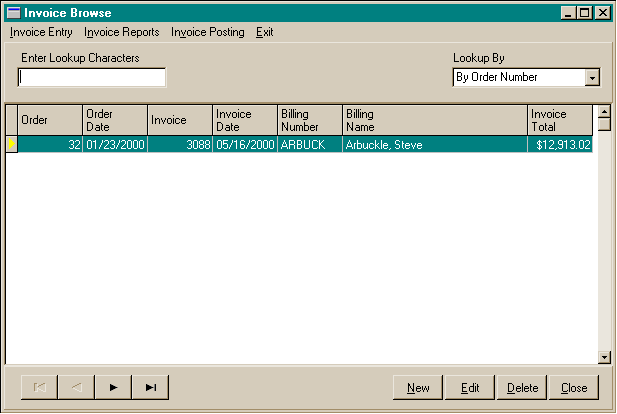
Invoice Browse Screen
Customer
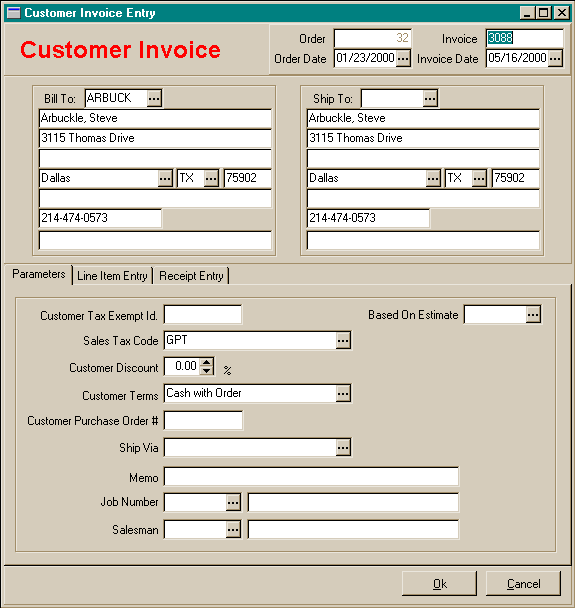
Invoice Entry Screen
Customer
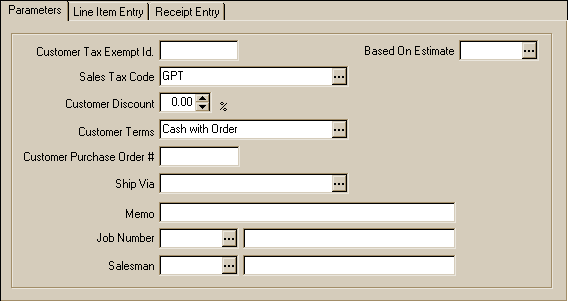
Invoice Entry Screen - Parameters
Customer
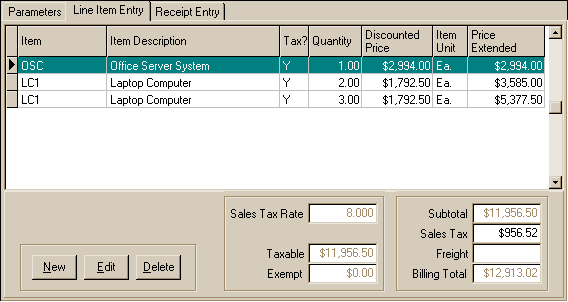
Invoice Entry Screen - Line Items
Customer
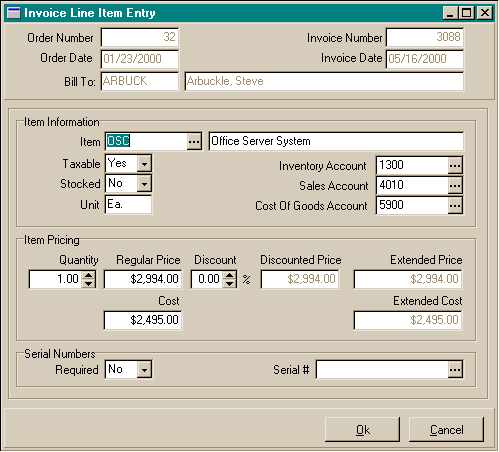
Invoice Entry Screen - Line Items - Detail
Customer
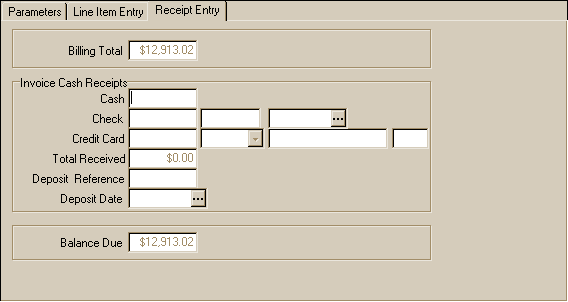
Invoice Entry Screen - Receipts
Customer
Invoice Data
- Order Number: A unique customer order number for each order. This
number is automatically assigned from the company parameters file. If you
want your orders to start at another number, go to the Company Parameters
to change the next available Invoice number.
- Order Date: The customer work order entry date. This date is system
assigned.
- Invoice Number: The unique customer invoice number for this order.
The invoice number would come from a technician invoice pad if the work order
was invoiced in the field. Invoice numbers can be assigned at posting for
invoices not associated with an order written at the customer site.
- Invoice Date: The invoice date for this customer order.
- Customer Billing Information:
- Bill To: The customer number from the customer file. A customer number
must be entered before line items can be entered.
- Bill To Name
- Bill To Address Line 1
- Bill To Address Line 2
- Bill To City
- Bill To State
- Bill To Zip Code
- Bill To Contact Person
- Bill To Telephone Number
- Bill To E-mail address
- Customer Location:
- Location: The service location number from the customer file. A service
location number is not required. It is used for customers with multiple
service locations. A customer with only one location would not need multiple
service locations. The service location is not required. Information from
the billing information defaults to the service location when the billing
number is entered. Service location information can be changed without
requiring a service location id.
- Location Name
- Location Address Line 1
- Location Address Line 2
- Location City
- Location State
- Location Zip Code
- Location Contact Person
- Location Telephone Number
- Location E-mail address
- Based on Estimate: An order may be based on an accepted estimate
from the estimate history.
- Parameters:
- Customer Tax Exempt Id.: A tax exempt number from the customer,
if the work is tax exempt.
- Sales Tax Code: The sales tax code to properly tax the line items.
This can be associated with the zip code entries to perform an automatic
lookup during the auto-create invoice process.
- Customer Discount: The customer discount allowed on all items.
The discount may be changed at the line item level if not all items are
discounted.
- Customer Terms: The terms given to this customers. Terms are set
up in the terms file.
- Customer Purchase Order: The purchase order issued by the customer
for this work.
- Job Number: A job may be assigned to the Invoice to start the process
of maintaining associated Invoiced and actual costs based upon a job number.
Use job costing only when the job requires more than just one invoice and/or
the equipment is not listed on a per invoice basis. Costs are maintained
on an invoice to show profitability per invoice. Jobs are set up for work
performed over a longer period of time with costs needing to be tracked
before the work is completed.
- Ship Via: Shipper of choice if mailing or shipping the invoiced
items.
- Memo:A memo area to keep notes about this invoice, etc.
- Salesman: The salesman who is preparing this Invoice.
- Work Order Memo:
- Line Items:
- Item Number: The inventory item number from the company inventory
file or vendor price list.
- Item Description: The item description as pulled from the inventory
file or vendor price list. The description may be changed.
- Taxable: Is this item taxable for sales tax?
- Unit: The sales unit of this item such as "Ea.", "Ft.",
"Box" etc.
- Quantity: The quantity to be sold to your client.
- Regular Price: The regular price before any discounts of this
item.
- Discount: The discount percentage for this line item. Originally
this is based on the customer discount on the Invoice, but it can be changed.
- Discounted Price: The price of the item after any discounts.
- Extended Price: The total price of the sale as calculated ( Quantity
times the Discounted Price ).
- Profit: The profit for this item as calculated ( Extended Price
minus Extended Cost ).
- Inventory Account: The general ledger account for showing the
inventory reduction of this item.
- Sales Account: The general ledger account for showing the sales
of this item.
- Cost Of Goods Account: The general ledger account for showing
the cost of this item.
- Totals:
- Billing Totals:
- Subtotal: The total of the line items extended price prior to sales
taxes.
- Sales Tax Rate: The sales tax rate based on the sales tax code entered.
- Sales Tax: The sales tax amount calculated by multiplying the sales
tax rate times the taxable sales amount.
- Freight: Enter the freight charged to the client.
- Billing Total: The total of subtotal, sales taxes, and freight.
- Taxable: The sales tax taxable amount of the sale.
- Exempt: The sales tax exempt amount of the sale.
- Invoice Cash Receipts:
- Cash Amount: The cash amount received.
- Check Amount: The amount received on the customer check.
- Check Number: The check number of the customer check.
- Check Date: The check date of the customer check. You may also list
as the date received. A separate deposit date is allowed to account
for differences in the check date and your actual deposit date.
- Credit Card Amount: The amount received on the customer credit card.
- Credit Card Type: Is the credit card a Visa, MasterCard, American
Express, Discover, or Other type of credit card.
- Credit Card Number: The customer credit card number.
- Credit Card Expiration Date: The expiration date of the customer
credit card. Date is entered MM/YY.
- Total Received: The total of the cash amount, check amount, and
credit card amount.
- Deposit Reference: A reference number is not using the check number
for the deposit.
- Deposit Date: Date to be listed for the deposit document
To enter
a new Customer Invoice:
- From the Document Entry menu, choose Customer Invoices.
- In the Customer Invoice Browse window, choose the New button at the bottom
right.
- You do not enter a unique order number. It is automatically assigned to
the next order number from the company system file. If the order number has
been already used by the system, a caution window will appear.
- Fill in the remainder of the Customer Invoice screen with the information
appropriate for this service appointment or customer order.
- When you have completed your entries, choose the Ok button to save the
information.
- Choose the Cancel button if you wish to cancel the Customer Invoice entry.
To
edit a Customer Invoice:
- From the Document Entry menu, choose Customer Invoices.
- In the Customer Invoice Browse window, choose the Edit button at the bottom
right.
- Edit the Customer Invoice information as needed
- When you have completed your entries, choose the Ok button to save the
information.
- Choose the Cancel button if you wish to cancel any changes to the Customer
Invoice record.
To
delete a Customer Invoice:
- From the Document Entry menu, choose Customer Invoices.
- In the Customer Invoice Browse window, choose the Delete button at the
bottom right.
- Choose the Yes button to delete the Customer Invoice record.
- Choose the No button if you do not wish to delete the Customer Invoice
record.
To
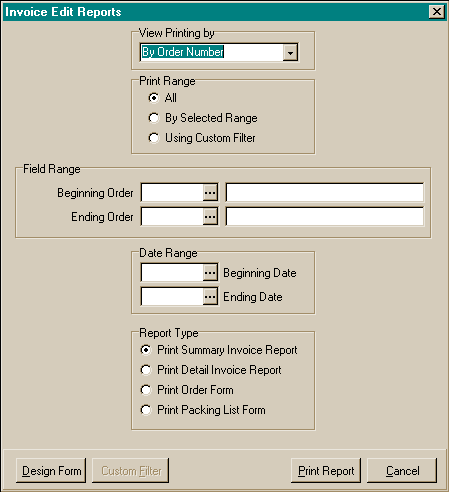
preview / print the Customer Invoice edit reports:
- From the Document Entry menu, choose Customer Invoices.
- In the Customer Invoice Browse window, choose the Customer Invoice Reports
menu option at the upper left.
- Choose the View By option for how the reports will be ordered. The options
are:
- By Order Number
- By Invoice Number
- By Technician
- Choose the print range of Customer Invoices. The options are:
- All
- By selected range. If by selected range, you may choose the beginning
and ending for the report, including the beginning and ending dates.
- Custom Filter
- Choose which report you wish to print. The options are:
- Summary Invoice Report
- Detailed Invoice Report
- Invoice Form
- Choose the Print Report button.
- The print preview window will appear. Use the page view buttons to size
the previewed report, and the page navigator buttons to scroll forward and
backward thru the report pages.
- To send to the printer, click on the Printer Speed Button at the top left
of the print preview screen.
- The printer dialog box will appear. Make any changes necessary. You may
change the number of copies, page range, and the designated printer.
- Choose the Ok button to send the report to the printer.
- Choose the Close button to end the print preview.
To
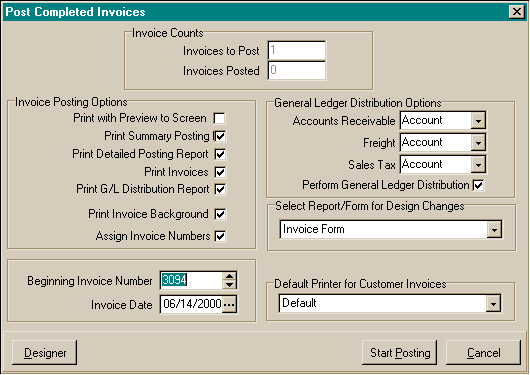
post the Customer Invoices:
- From the Document Entry menu, choose Customer Invoices.
- In the Customer Invoice Browse window, choose the Post Invoices menu option
at the upper left.
- Choose the Invoice Posting options you want. Options that are checked will
be performed during the posting operation. The options are:
- Print Invoice Summary Posting Report
- Print Detailed Posting Report
- Print Invoices
- Print Invoice Background
- Perform G/L Distribution
- Print G/L Distribution Report
- Assign Invoice Numbers
- Beginning Invoice Number
- Invoice Date
- Choose the Start Posting button.
- If the print posting reports options were checked, the print preview windows
will appear for each report.
- Use the page view buttons to size the previewed report, and the page
navigator buttons to scroll forward and backward thru the report pages.
- To send to the printer, click on the Printer Speed Button at the top
left of the print preview screen.
- The printer dialog box will appear. Make any changes necessary. You
may change the number of copies, page range, and the designated printer.
- Choose the Ok button to send the report to the printer.
- Choose the Close button to end the print preview.
- Click on the Ok button if the report was printed correctly. If the report
did not print out correctly, choose the No button to reprint the report,
or the Cancel button to cancel the posting operation.
- The Invoice posting operation will begin. The posting operation will:
- Update the invoice history files.
- Update the customer aging open receivables file.
- Update the customer document history file.
- Update the customer file.
- Update the job files.
- Create distribution for the general ledger distribution file.
- When the Invoice posting operation has completed, a message will appear
"Invoice Posting Completed.".
- Click on the Ok button to complete the posting operation and return to the
Customer Invoice Browse window.